
Deskmark
Always know which desktop you are on
A lightweight menu bar app that displays your current desktop name
Why Deskmark?
Designed for effortless desktop management
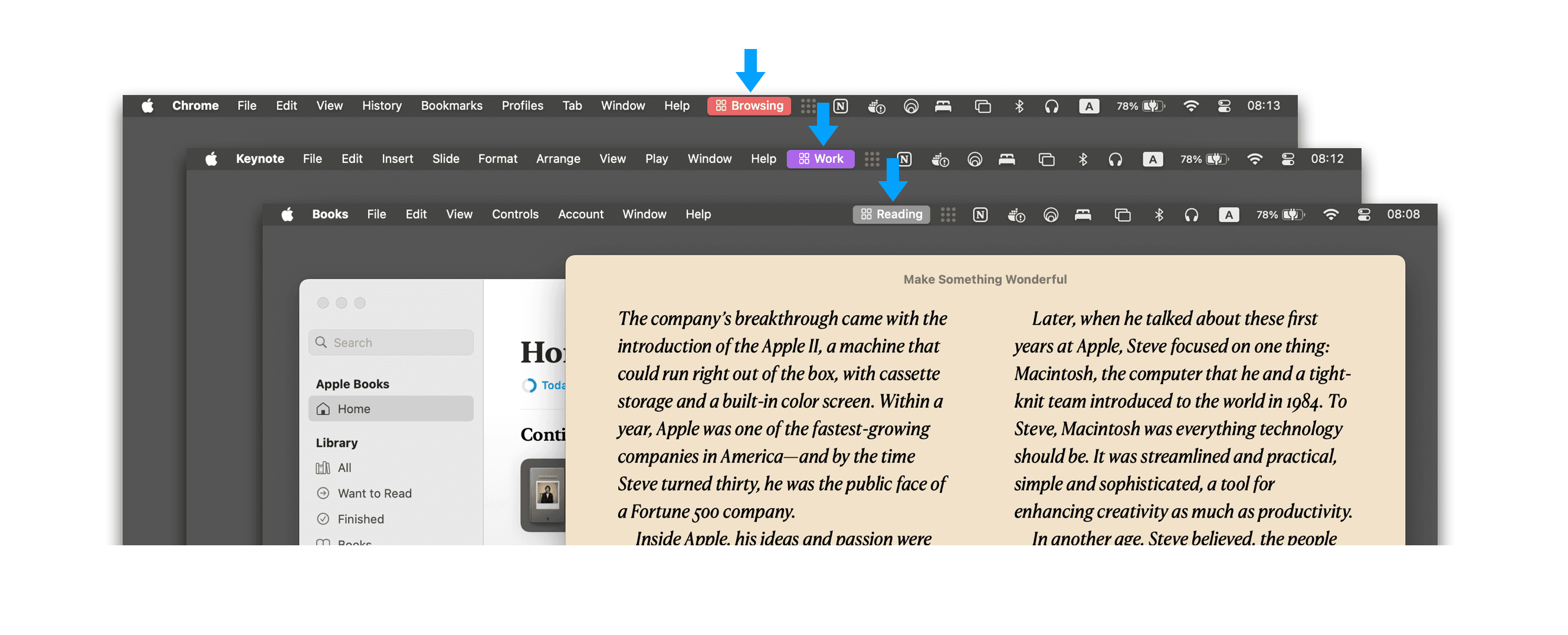
Real-time Desktop Indicator
Instantly shows your current desktop name in the menu bar. Updates automatically when you switch.
Custom Names & Colors
Give each desktop a unique name and color. Replace “Desktop 1” with meaningful labels like “Work” or “Development”.
Lightweight & Efficient
Only 700KB in size with minimal system resource usage. Runs quietly in the background.
Native macOS Design
Seamlessly integrates with macOS. Uses system fonts and icons, supports both light and dark modes.
Automatic Detection
No manual input needed. Automatically detects desktop switches via trackpad gestures, keyboard shortcuts, or Mission Control.
Launch at Login
Set it once and forget it. Automatically launches with your system, ready when you log in.
See Deskmark in Action
Simple setup and elegant in use
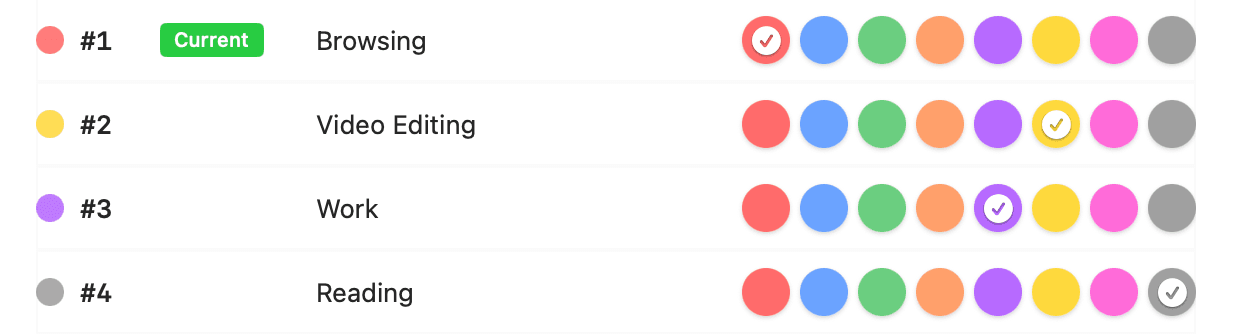
Easy configuration — customize names and colors for each desktop
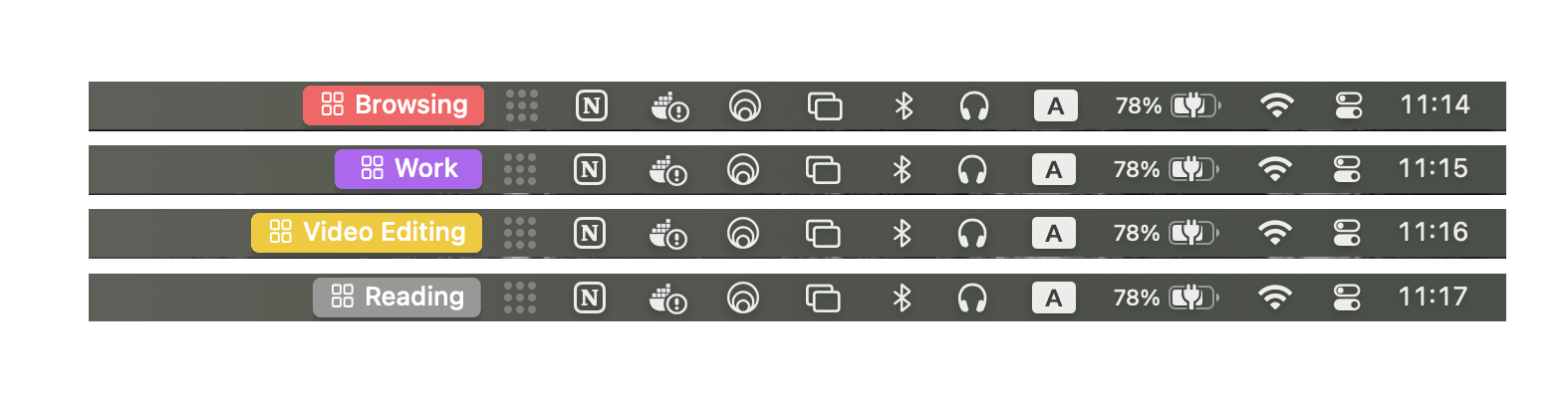
Real-time display — current desktop shown clearly in menu bar
Download Deskmark
Free, no registration required
Deskmark 1.1
for macOS
Version
1.1
Size
5.6 MB
Requires
macOS 13.0+
First time opening: Right-click the app and select “Open”. Code signed with Apple Developer Certificate.
Frequently Asked Questions
Is Deskmark free?
Yes, Deskmark is completely free with no ads, in-app purchases, or subscriptions.
I see “Cannot be opened” on first launch, what should I do?
This is macOS security. Right-click Deskmark.app, select “Open”, then click “Open” again in the dialog. After this, it will work normally.
Will Deskmark affect my Mac's performance?
No. Deskmark is only 700KB in size, uses minimal memory (typically <10MB), and near-zero CPU. It's designed to be lightweight.
Does Deskmark work with multiple monitors?
Yes. Deskmark shows the currently active desktop and works correctly with both single and multiple monitor setups.
How many desktops can I configure?
Deskmark supports as many desktops as macOS allows. Tested with 10+ desktops, each with its own name and color.
Where is my desktop configuration stored?
All settings are stored locally using macOS standard UserDefaults. Nothing is uploaded to any server.
How do I uninstall Deskmark?
Simply drag Deskmark.app from Applications to Trash. To manually remove settings, run in Terminal:defaults delete com.twointelligences.deskmark